Index:
|
 |
 |
Please input your PRO Niaga username and password
2. Insert AD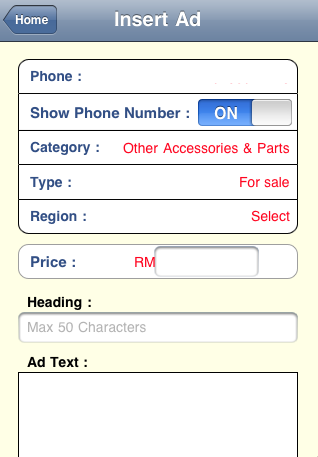 |
 |
- Phone {Select}
- If you have registered only one phone number, it will be your default phone number for all your ads.
- If you have registered more than one number on your Pro Niaga Account, 'Select' which phone number you would like to use for your current ad.
- Phone Number {On/Off}
- Touch on 'On' or 'Off' to choose if you want your phone number to appear in the ad.
- Category {Select}
- Choose the category of the item that you are advertising from our list of categories.
- Categories that require listing fees will automatically be deducted from your credit balance.
- Type {Select}
- Select the type of your item or service, example 'For Sale', 'Wanted', 'For Rent', 'Wanted to Rent'
- Region {Select}
- Select the region you are located. You can choose only one region per ad.
- Heading : {Label}
- Write a heading of the item you are selling. The heading must be a description of the item/service. Do not use any symbols or use 'for sale', 'wanted'.
- Please refer to our Rules of Advertising
- Price: {Label} Input
- Enter the price of your item in numbers- without any commas or space.
- Ad Text: {Text Box}
- Write a short explanation of the item/service that you are selling.
- Refer to our 'Rules of Advertising'
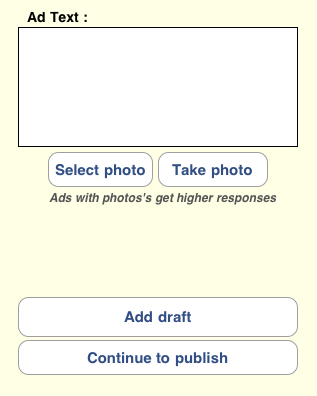
- Once you have completed the process you can choose to i)Add Draft
- Draft {List} Here your ads will be stored with your list of draft ads where you will be able to publish at a later time.
- If you wish to publish your ad immediately choose 'Continue Publish'
- Preview (Insert Ad) Preview page will show you the preview of your ad. During this time your ad will be sent for reviewing. The reviewing process will take up to 3 hours. Once your ad is published on our site, a notification email will be sent to you. site, a notification email will be sent to you. In the event your ad is refused based on our Rules of Advertising , a notification email will be sent to you.
- (home) Tap on 'Home' to return to Menu.
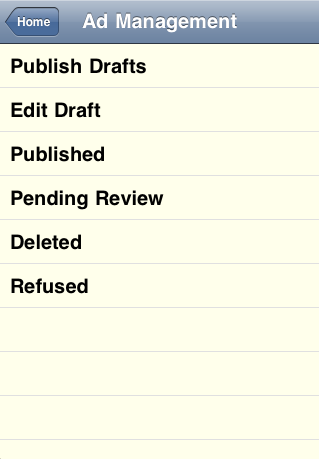 |
- Publish Drafts {List}
- All draft ads will be stored in this location.
- You are able to multi select draft ads that you want to publish.
- You are able to publish up to 5 ads at once from this menu.
- Tap on the ads you wish to publish.
- Tap on 'Next' button on top right of screen.
- Once you confirm your ads to be published tap 'Publish' button at bottom of page.
- Edit Draft {List}
- All draft ads will be stored in this location.
- Tap on the ad you wish to edit.
- Make your changes.
- You may upload your ad by tapping on 'Continue Publish' or
- Published {List}
- Shows your list of ads that are currently published on our site.
- Pending Review {List}
- View your list of ads that are pending review from this list.
- Deleted {List}
- Shows your list of deleted ads.
- Refused {List}
- Shows your list of refused ads.
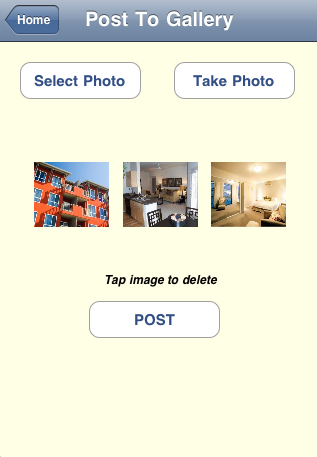 |
This feature allows you to select photos from
- a.Your phone gallery
- b.Take a new photos
Post it and have it available at your gallery.
These photo's will be saved to your gallery in order for you to access them from your pro-niaga account at a later time at 'My Photo Gallery'.
The gallery is accessible from both your iphone application from your desktop on the web.
5. Contact Us - Button (Call)(Email)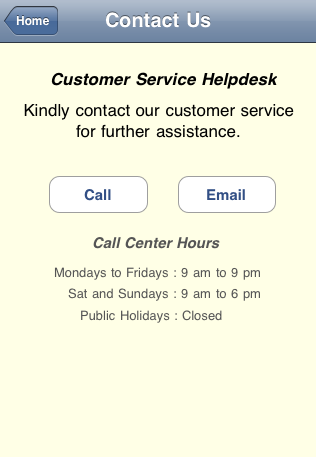
| 
|
For further assistance please contact our customer services department by
- Call-
Will direct you to our customer service call center.
Opening hours 9am-9pm on Weekdays, 9am-6pm on weekends excluding Public Holidays. - Email-
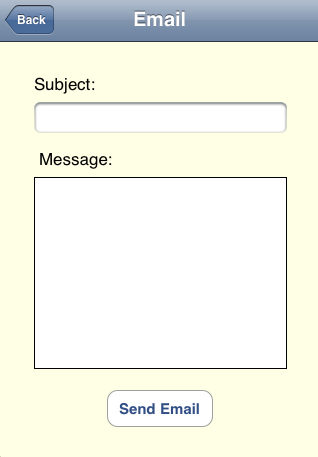
To be sent directly from your mobile to customer services.
Emails will be replied to the registered email of your Pro Niaga Store.