
- Home
- Entire Malaysia
- Selangor▼
- Computers & Accessories
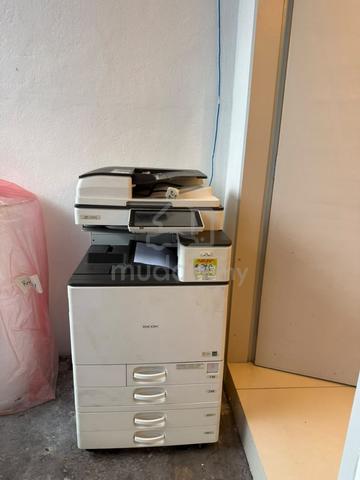
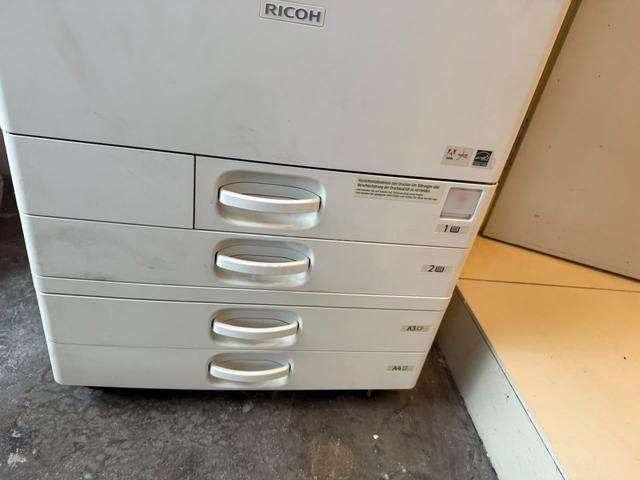
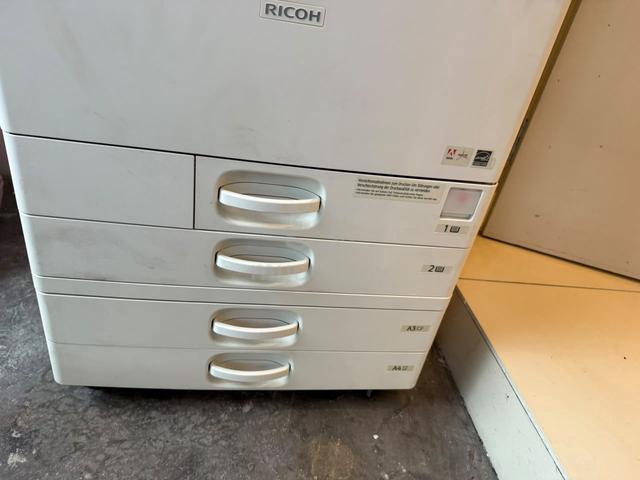
- photocopy ricoh mp c4504
photocopy ricoh mp c4504
List-ID: 116062632Today 15:01
Description
Specification
- # RICOH MP C4504 – DESCRIPTION, SPECIFICATION AND MAINTENANCE
## 1. Description
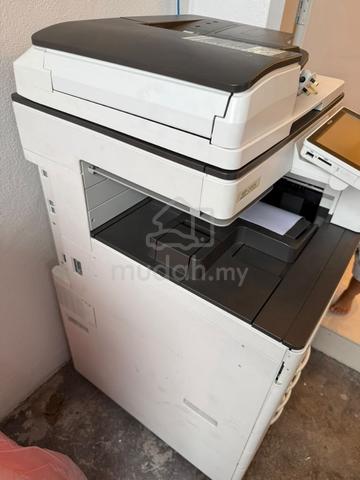
Ricoh MP C4504 is a multifunction colour photocopier designed for offices, businesses, schools and printing shops. The machine combines photocopying, printing and scanning functions in one unit. It provides high-quality colour and black-and-white output and supports various paper sizes, including A4 and A3. It is suitable for handling daily office documents, reports, invoices, presentations and other business materials.
## 2. Technical Specifications
- **Brand:** Ricoh
- **Model:** MP C4504
- **Machine Type:** Multifunction Colour Photocopier
- **Printing Technology:** Laser Printing
- **Print Speed:** Up to 45 pages per minute (A4)
- **Print Resolution:** Up to 1,200 × 1,200 dpi, depending on print mode
- **Maximum Paper Size:** Up to SRA3/12 × 18 inches, depending on configuration
- **Functions:** Copy, Print and Scan
- **Colour System:** Black, Cyan, Magenta and Yellow (CMYK)
- **Control Panel:** Touchscreen Smart Operation Panel, depending on configuration
- **Network Connectivity:** Network printing and scanning, depending on setup
- **Additional Features:** Duplex printing, automatic document feeding and optional finishing functions
- **Optional Function:** Fax, depending on installed accessories
## 3. Main Components
**Toner Cartridge:** Contains toner powder used to produce text and images on paper. The machine uses four toner colours: black, cyan, magenta and yellow.
**Drum Unit:** Transfers the toner image onto the paper. A worn or damaged drum may cause lines, spots or uneven print quality.
**Developer Unit:** Helps develop and transfer toner images during the printing process. Problems with the developer may cause colour inconsistencies or faded prints.
**Fuser Unit:** Uses heat and pressure to permanently bond toner to the paper. A faulty fuser may cause toner to rub off or produce printing defects.
**Paper Feed Roller:** Feeds paper from the paper tray into the machine. Worn rollers can cause paper jams or multiple sheets feeding at once.
**Waste Toner Bottle:** Collects excess toner produced during the printing process. It must be replaced when the machine indicates that it is full.
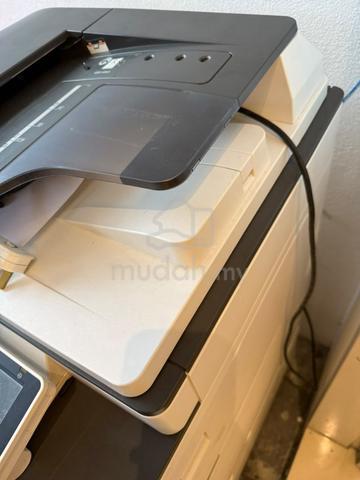
**Automatic Document Feeder (ADF):** Feeds multiple documents into the scanner for copying or scanning.
## 4. Maintenance Procedures
### Daily Maintenance
1. Clean the exterior of the machine using a soft, dry cloth.
2. Check the paper trays and refill paper when necessary.
3. Check toner levels and machine warning messages.
4. Clean the scanner glass using a soft, lint-free cloth.
5. Inspect the automatic document feeder for dust and dirt.
6. Ensure that the machine is placed in a clean, dry and well-ventilated area.
### Weekly Maintenance
1. Clean the scanner glass and accessible ADF surfaces.
2. Check the paper feed rollers if paper jams occur frequently.
3. Remove dust from the exterior and surrounding area.
4. Perform test prints to check black-and-white and colour output.
5. Inspect the paper trays and output tray for proper operation.
### Monthly Maintenance
1. Record the total black-and-white and colour print counters.
2. Check print quality for streaks, spots, fading or uneven colours.
3. Test the scanning and network printing functions.
4. Review recurring paper jams and error codes.
5. Arrange a technician inspection when necessary.
### Periodic Maintenance
1. Inspect the drum unit and developer unit.
2. Check the condition of the fuser unit.
3. Inspect and replace worn paper feed rollers when required.
4. Check the waste toner collection system.
5. Inspect paper sensors and other internal components.
6. Perform colour calibration and print-quality adjustments when necessary.
7. Check firmware, network settings and scanner functions when required.
Internal maintenance and component replacement should be carried out by a qualified technician according to the manufacturer's service procedures.
## 5. Common Problems and Troubleshooting
**Paper Jam:** Check the paper tray, paper condition and paper path. Remove jammed paper carefully according to the instructions displayed on the control panel.
**Black Lines on Prints:** Clean the scanner glass first. If the lines remain, the drum unit or internal cleaning system may require inspection.
**Faded Printing:** Check the toner level and print settings. If the problem continues, the imaging system may require servicing.
**Uneven Colours:** Check toner levels and print-quality settings. Further inspection of the drum, developer or colour calibration may be necessary.
**Toner Rubbing Off the Paper:** Check the paper type and settings. A fuser problem may require inspection by a qualified technician.
**Scanner Not Sending Documents:** Check the network connection, email configuration and scan destination settings.
**Frequent Paper Jams:** Check the paper size, paper condition and tray loading. Worn rollers or faulty sensors may require replacement or servicing.
## 6. Safety Precautions
1. Switch off the machine before carrying out maintenance that requires it to be powered down.
2. Do not touch the fuser unit while it is hot.
3. Avoid touching the surface of the drum unit.
4. Use compatible toner and recommended consumables.
5. Do not use excessive liquid when cleaning the scanner glass.
6. Do not dismantle internal components without proper training.
7. Follow the manufacturer's operating and maintenance instructions.
## 7. Conclusion
The Ricoh MP C4504 is a reliable multifunction colour photocopier suitable for office and business environments. Proper maintenance helps maintain print quality, reduce paper jams, extend component life and minimise unexpected downtime. Regular inspection, correct consumable usage and timely servicing by a qualified technician are essential to ensure efficient and consistent machine performance.

Mudah Safety Tip
If it is a meet-up/COD, always inspect item condition on site before paying. Find out more safety tips in MudahSafety!
Do you find this ad suspicious or inappropriate?
Report this ad (List-ID: 116062632)Is this your ad? Manage it using these links.
You May Also Like





Price
RM 3,500
Location
Selangor - Semenyih
Condition
Second-hand (Used)
Shortlist, compare, decide — faster on the app.
Scan QR to Download App


4.7
200K+ reviews
Private
Share this ad